


Instructions video consultation
We strongly recommend using a computer instead of a digital tablet or mobile phone. A computer offers better visibility in full screen mode and faster connection speed when accessing the video conferencing module.
INSTRUCTIONS IF YOU USE A:
A- COMPUTER (PC)
B- MOBILE PHONE or DIGITAL TABLET
A- INSTRUCTIONS TO FOLLOW WHEN USING A COMPUTER:
1. Click on the following link: https://join.me/jpgrimard
2. At the bottom of the window, enter YOUR NAME, then click NOTIFY (to notify your expert consultant that you are online).

3. Wait for your expert consultant to join the VIDEO CONFERENCE.
4. Once your expert consultant is connected to the video conference, a message will ask you "How will you talk and listen?"
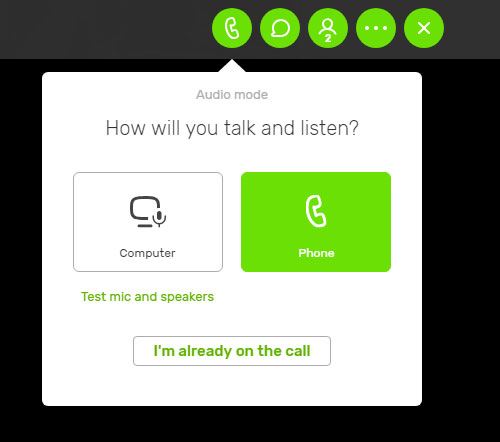
a- If you have a webcam (with microphone and speakers), click on COMPUTER and Authorized Join.me application to use your
microphone for the conference.
b- If you do not have a webcam (neither microphone nor speakers), click on TELEPHONE (so you can speak using your phone with the
expert consultant. Please note that you can also see your expert consultant and the various products thanks to its camera):
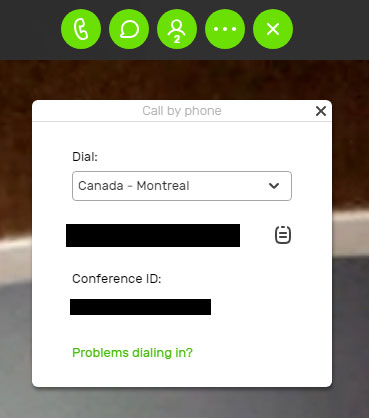
i- Select CANADA - MONTREAL (or select the capital city closest from where you live - as shown in the image below).
ii- Dial the TELEPHONE NUMBER displayed on the screen using your own telephone (if you are from the region, using 1 before the area code
is not required).
iii- Dial the CONFERENCE NUMBER displayed on the screen followed by the #.
iv- Close this window by clicking on the X at the top right of the window.
5. You are now connected live with your expert consultant, ready to view your desired products and receive expert advice.
----
B- INSTRUCTIONS TO FOLLOW USING A MOBILE PHONE OR DIGITAL TABLET:
1. Click on the link provided to you by email and / or text message by JP Grimard (subject: REMINDER virtual consultation). If you can't click
on the link, copy and paste it or manually retype the following URL: https://join.me/jpgrimard in the address bar of your internet browser.
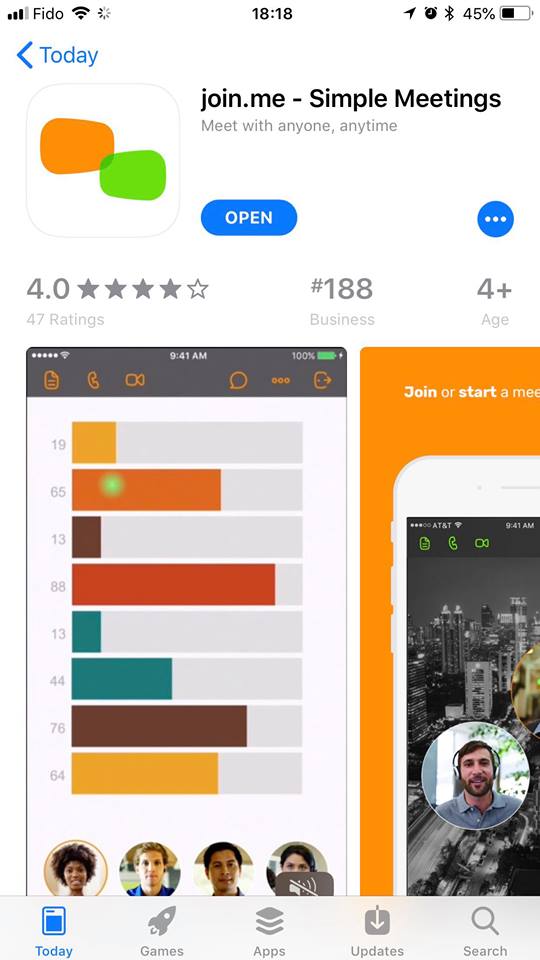
2. When the page is displayed, click OPEN.
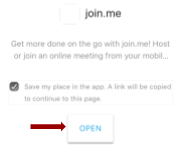
3. When the Popup window appears, click OPEN.
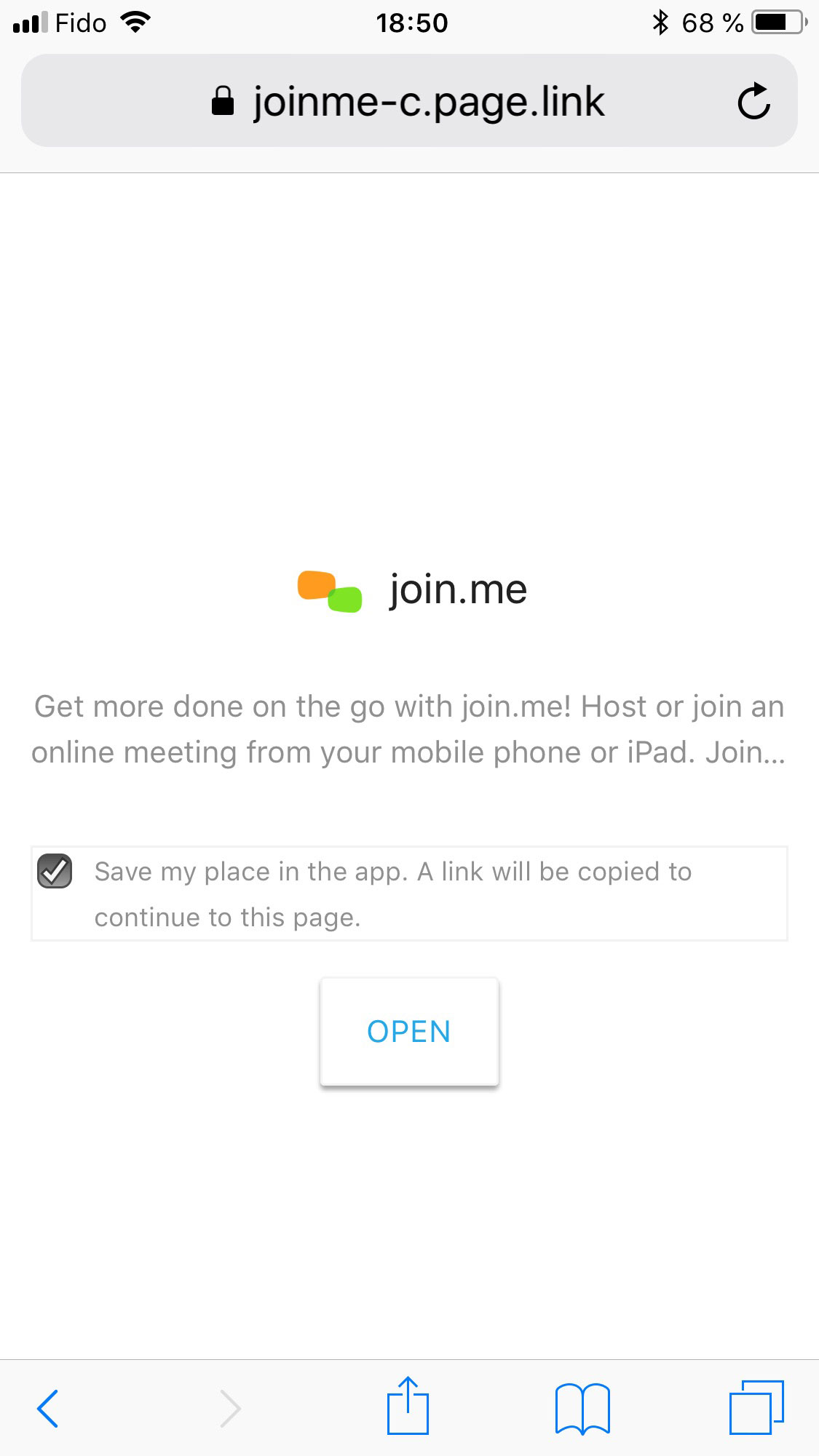
4. Download the JOIN.ME application by clicking on the cloud icon on the right.
5. Once the application has downloaded click OPEN.
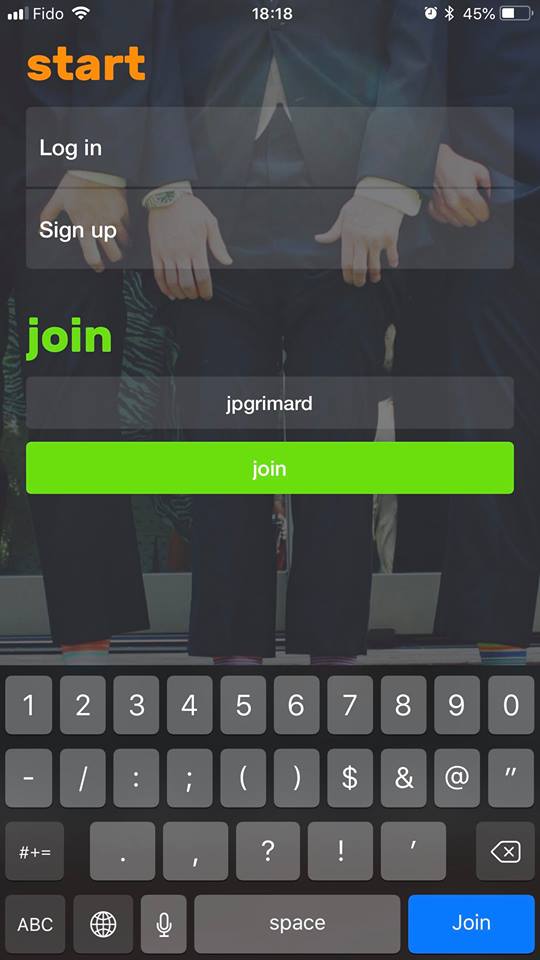
6. Click on JOIN (green button), then enter the code of the meeting JPGRIMARD in the box provided for this purpose.
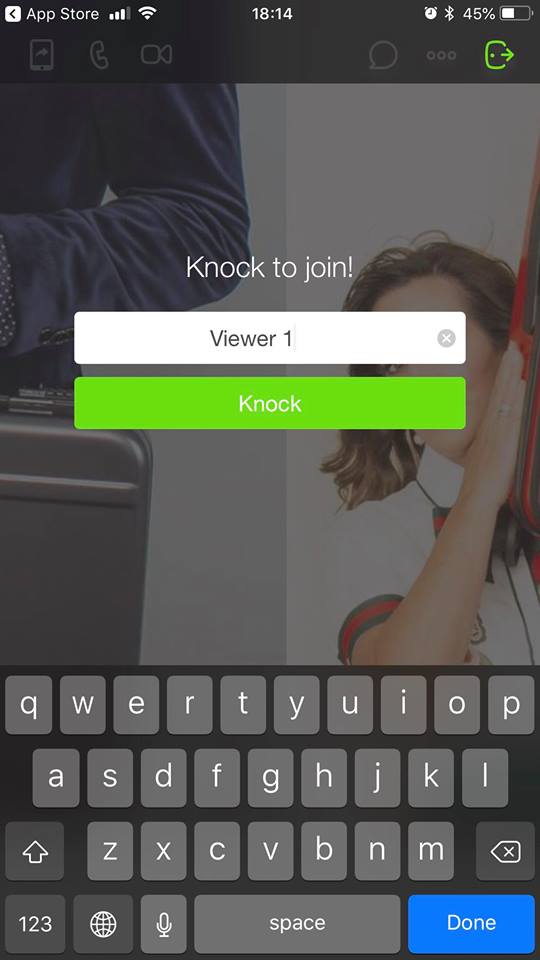
7. Enter YOUR NAME in the white box instead of Viewer 1, then click on Knock.
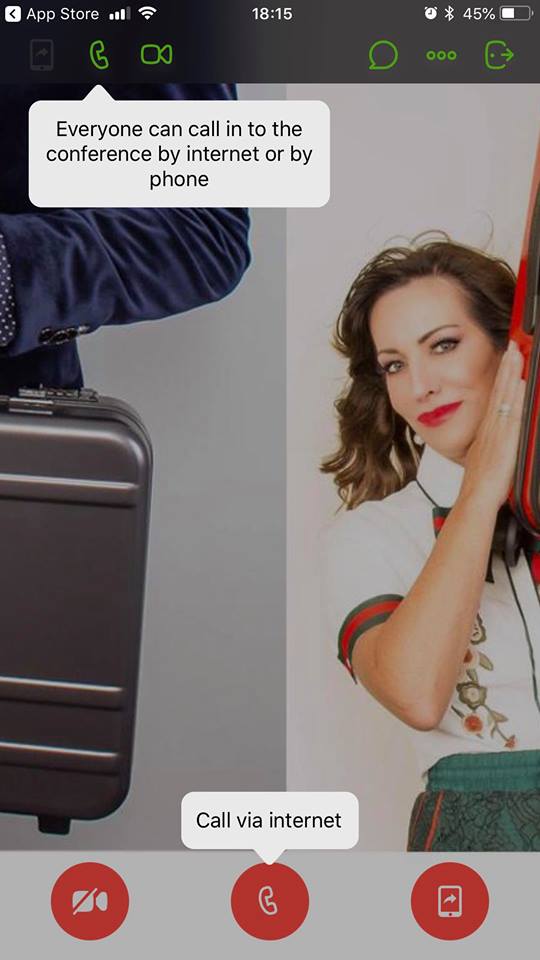
8. In the bottom center, press the PHONE icon to activate the sound (the icon will become a microphone). Repeat the same procedure to
activate the VIDEO.
9. You are now connected live with your expert consultant, ready to view the desired products and receive expert advice.